In this article:
Manually adding a Public Holiday
Assigning a Public Holiday to your users
What is a Public Holiday?
Cintra People HR provides configuration for Public Holidays by configuring Public Holiday Profiles. You can have more than one Public Holiday profile set up for your organisation and these are then applied to the relevant employees.
Public Holidays are treated as non-working days in the system and are not deducted from an employee's allowance if a request is made on or across that day. Administrators can configure their own Public Holidays or you can import defaults supplied by Cintra People or from an iCal file of holidays which may be found on the Internet. Updated defaults from Cintra People are typically made available just more than a year ahead to avoid last minute changes causing issues.
Importing a Public Holiday
Some default Public Holidays are provided by Cintra People. You can import these into a Public Holiday Profile that already exists or create one from scratch.
Go to Leave > Admin & Config > Public Holidays.
Either open a Public Holiday Profile or click the Create button.
If you have been using Cintra People HR for some time, you'll see previously configured years on your Public Holiday Profiles - if these are Public Holiday Profiles aligned with the Cintra People defaults, these will be automatically updated.
Importing using Cintra People HR Defaults
Select a country from the dropdown and give the Profile a name. There is an extensive list of popular defaults listed.
The imported Public Holidays will then be displayed on the calendar.
Importing using iCal
If your country is not on our Cintra People Defaults list, you'll need to import the dates using iCal.
Click on Import and select iCal file.
Click Next and you can then check and confirm the dates to import. Once you are happy with the selection, click the Import Selected or Import All button. The imported Public Holidays will then be displayed on the calendar.
Not all Public Holidays are available via the import feature. Those that are provided are only provided as an aid. We highly recommend that you modify and update as needed to suit your organisation. It is the Administrator's responsibility to ensure that they are correct before users create requests spanning Public Holidays.
PLEASE NOTE: When public holidays have been added, they will only apply to future requests. Requests made prior to the addition of public holidays will not be amended to include the public holiday. We recommend cancelling these old requests and re-entering them should you wish for the new changes to be applied to the requests.
Manually adding a Public Holiday
If you prefer not to use the defaults or you would like to add your own Public Holidays to your Public Holiday Profile, you can do this manually.
Go to Leave > Admin & Config > Public Holidays.
Select a Public Holiday Profile or add your own, then click Create.
Select the date of the Public Holiday and give it a name, specify if it is a half day or full day then click Create Public Holiday.
The Public Holiday will now show in the calendar.
Deleting or amending a Public Holiday
Deleting Public Holidays
Go to Leave > Admin & Config > Public Holidays.
Select the Public Holiday Profile the holiday you want to delete sits under.
Click on the tickbox next to the Public Holiday you wish to delete and click Delete, a dialog will pop up, if you're happy with the selection, click Yes.
You can delete more than one Public Holiday at once by selecting multiple tickboxes, or you can delete all the Public Holidays in the Profile by clicking the tickbox next to Date.
Amending a Public Holiday is a combination of the steps described in Adding a Public Holiday and Deleting Public Holidays as described above.
PLEASE NOTE: When public holidays have been deleted, requests made prior to the deletion of the public holiday will not reflect that change automatically. We recommend cancelling impacted old requests and re-entering them should to enable the new changes to be applied to the requests.
Deleting Public Holiday Profiles
Go to Leave > Admin & Config > Public Holidays
Click on the tickbox next to the Public Holiday Profile you wish to delete and click Delete, a dialog will pop up, if you're happy with the selection, click Yes.
You can delete more than one Public Holiday at once by selecting multiple tickboxes, or you can delete all Public Holiday Profiles by clicking the tickbox next to Name.
Assigning or changing an Employee's Public Holiday Profile
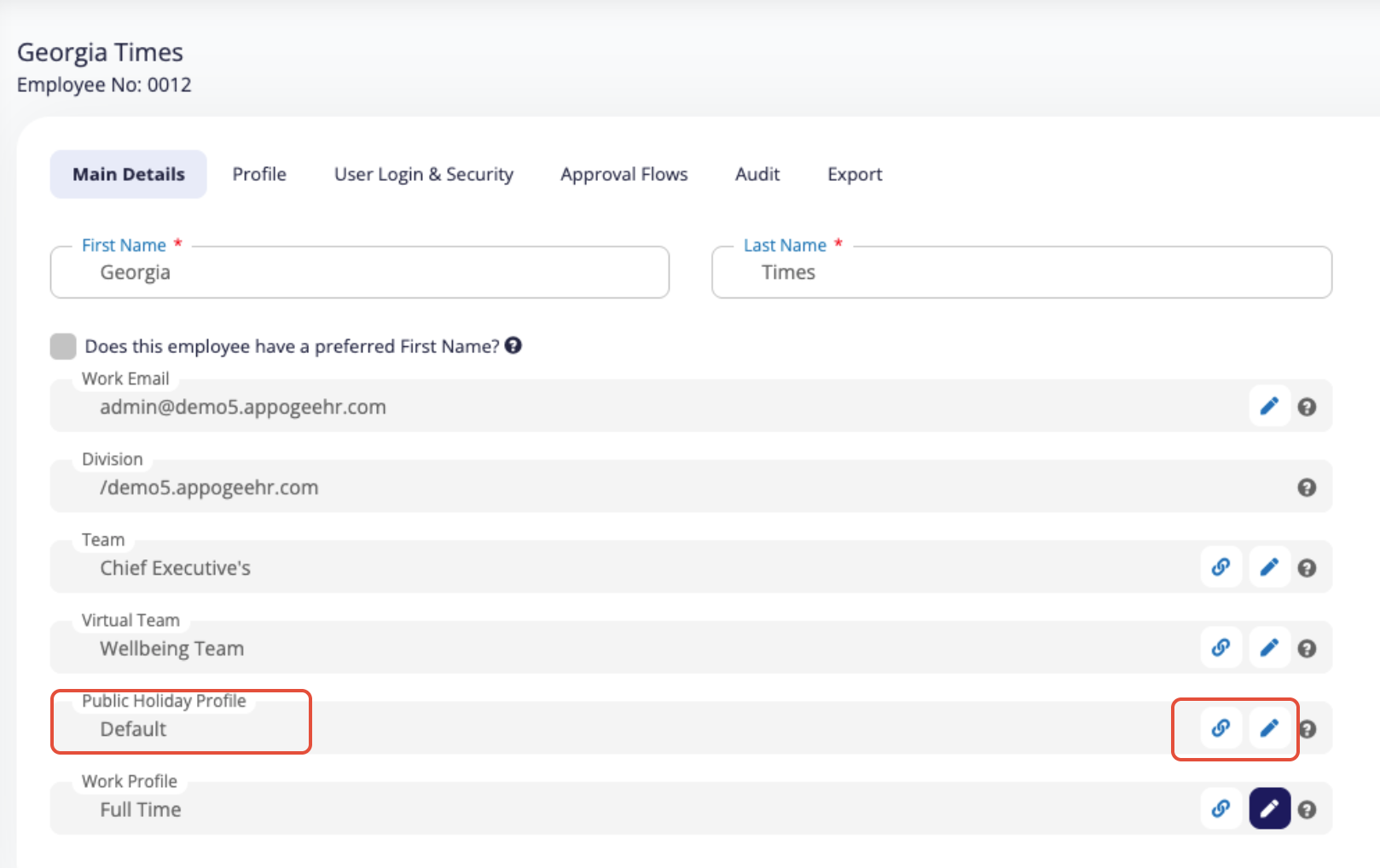
Once you've created a Public Holiday Profile, you'll be able to add this configuration to your users. To do this, go to Organisation > Employees > Select Employee > Public Holiday Profile. Click the edit pencil to amend.
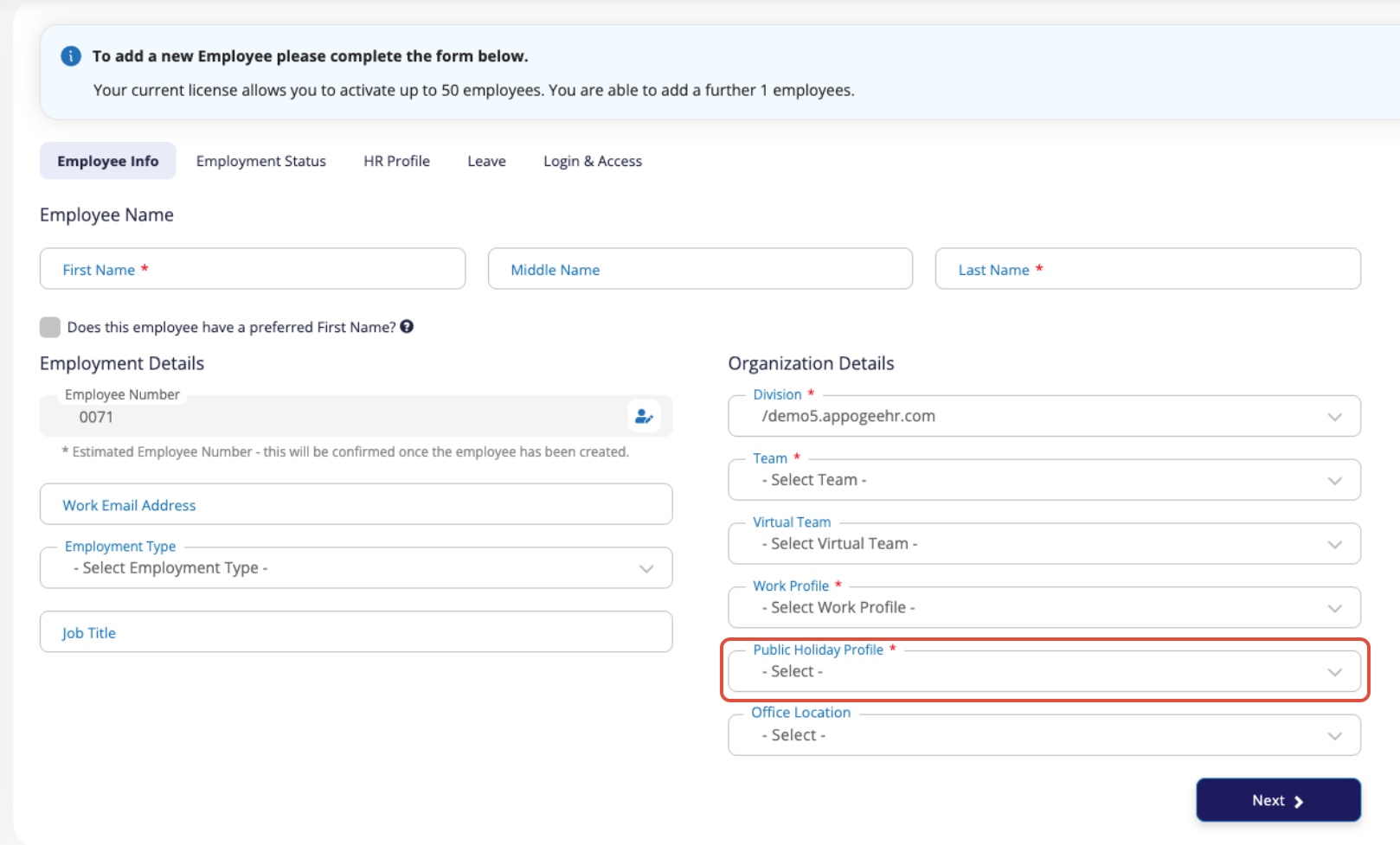
The Public Holiday Profile is also a required field when adding employees into the system, so you'll need to set up the relevant Public Holiday Profiles before adding your employees into Cintra People HR.


Was this article helpful?
That’s Great!
Thank you for your feedback
Sorry! We couldn't be helpful
Thank you for your feedback
Feedback sent
We appreciate your effort and will try to fix the article